The DentalSO mobile app includes multiple modules designed to streamline dental lab operations. Among them, the Production Management module offers a structured and efficient approach to managing workflows from start to finish.
By clearly defining each step in the production process, the system automatically assigns specific tasks to technicians. This not only simplifies task management but also makes it easier to monitor progress, ensure accountability, and maintain consistent quality.
To learn more about the Production Management module, please refer to the detailed Order & Production Management section.
Technician Functions
This section focuses on the key features and functionalities available to technicians, helping them manage assigned tasks efficiently and stay aligned with production requirements.
1. Install DentalSO
Method 1: Search for the keyword “DentalSO” on the App Store or Google Play.
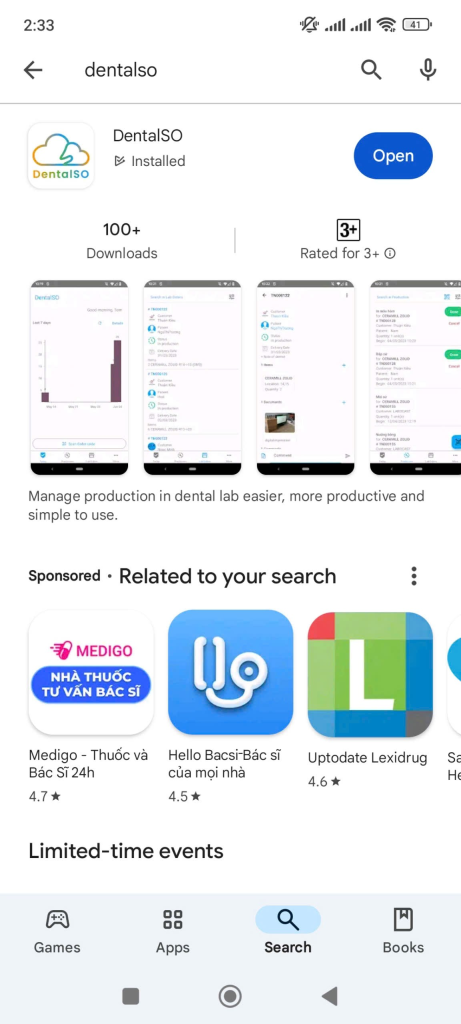
- For Android users: Install DentalSO on Android
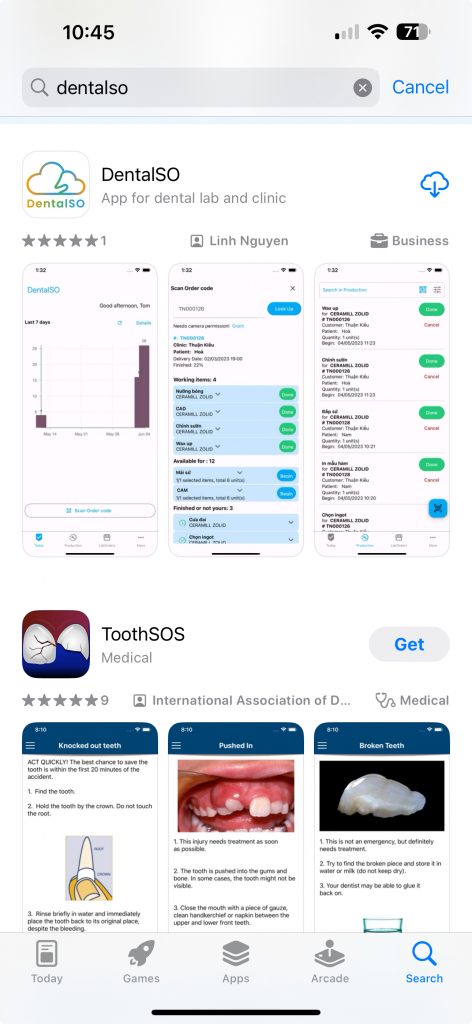
- For iOS users: Install DentalSO on iPhone
2. User Guide
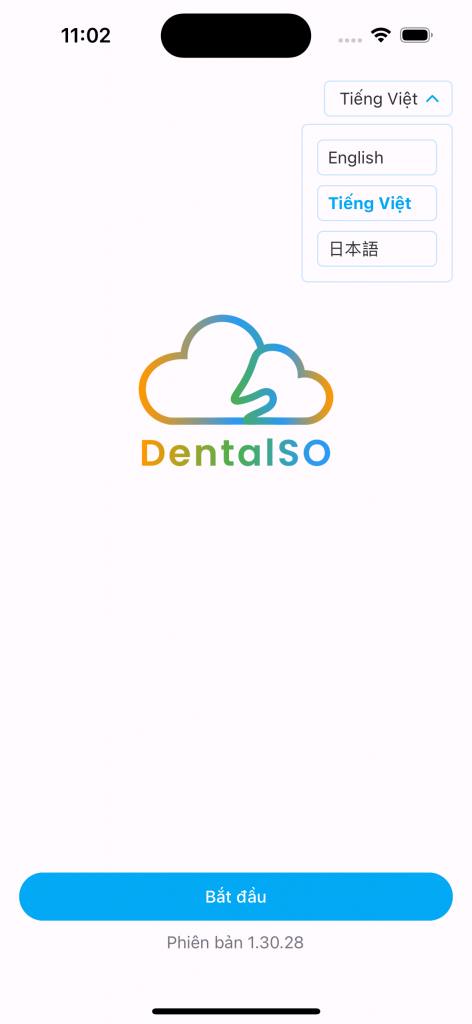
2.1. Language Selection:
You can choose from three languages:
- English
- Vietnamese
- Japanese
2.2. Login to Your Account:
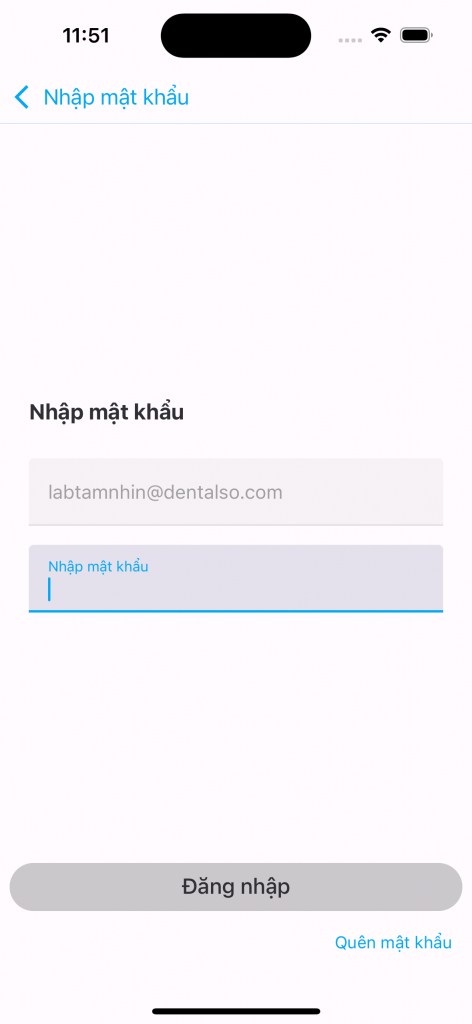
- Contact your lab administrator or DentalSO for a login account (email & password). If your lab is not yet using DentalSO, reach out to us via the contact info below to request access.
Contact Information:
- Tầm Nhìn Software Company
- Vietnam: 028 8886 0606 – 094 747 6000
- U.S.: +1.425-243-2437
- Email: contact@dentalso.com
2.3. Main Screen:
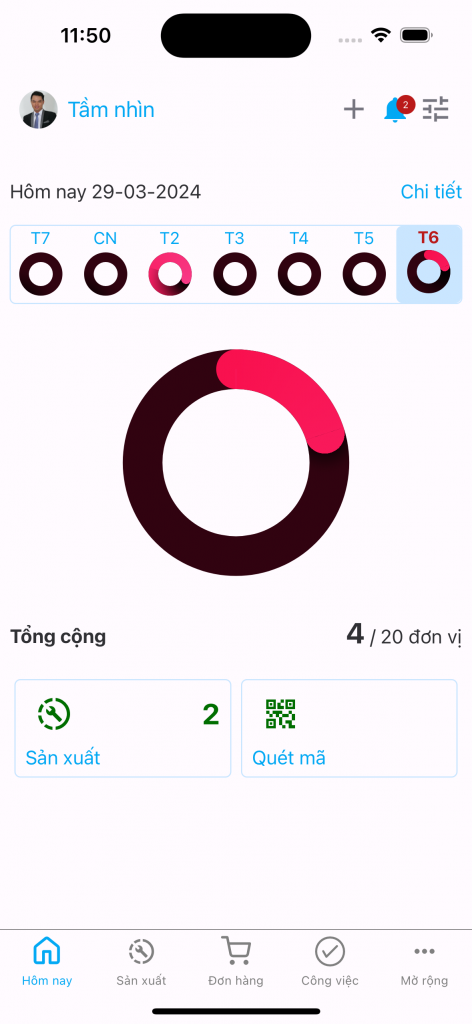
- The main screen for technicians shows daily work results and provides quick QR code scanning functions.
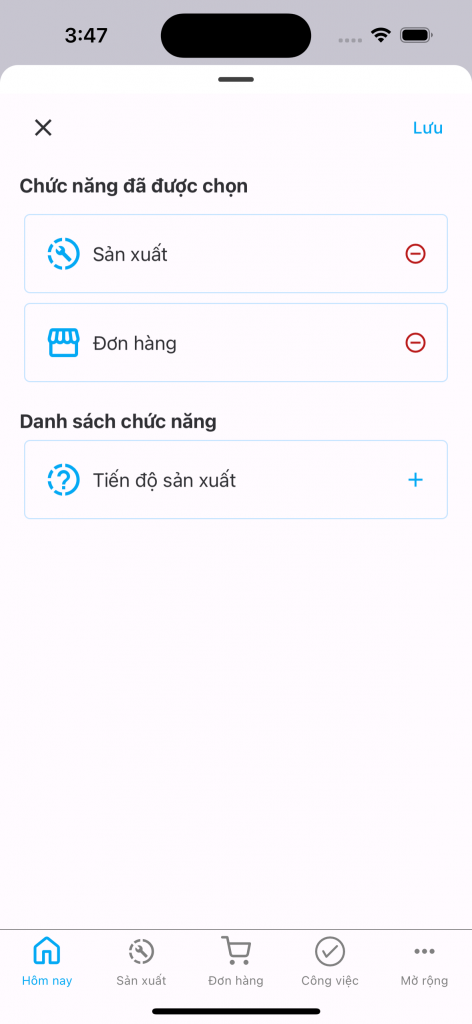
- Customizing the Main Screen: You can adjust the main screen features based on the permissions assigned by the system administrator.
2.4. Production Process:
- Active Task List:
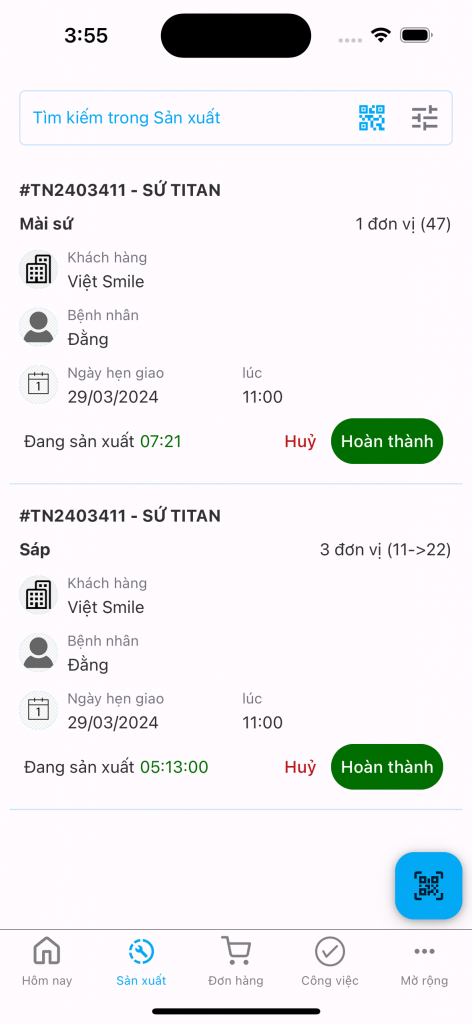
- Scan QR codes to view order details.
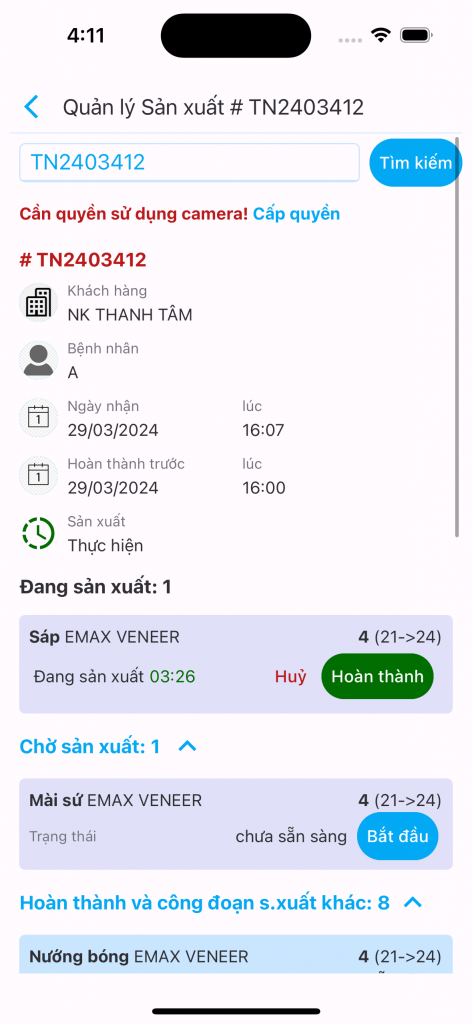
The order profile contains key information:
- General information about the order (dental clinic, patient details).
- Order reception and required completion times.
- Progress of each production stage.
- Images and notes from the dental clinic and previous stages of the order.
Technicians can also:
- Select products for production.
- Complete current tasks.
- Upload images and add notes.
2.5. Reporting:
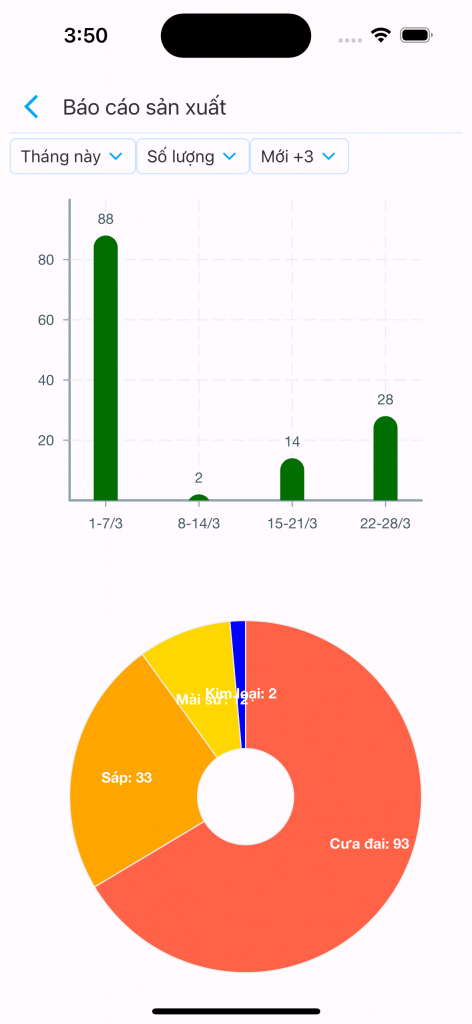
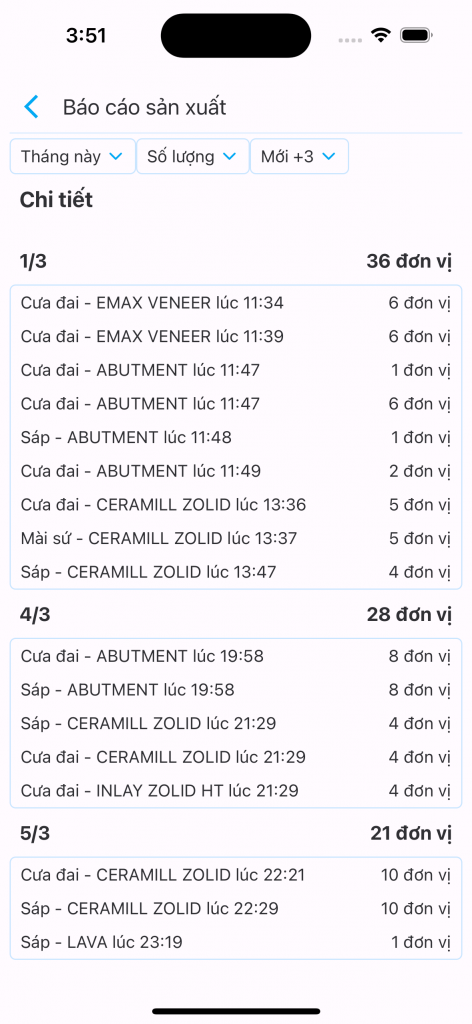
- Tap “Details” on the main screen to access various reports:
- Filter by production time.
- Track data such as production quantity and time.
- Filter by order type: New, Warranty, Rework, or Corrected Items.
- Production Reports: View detailed technician performance results.